Cloudflare now lists AI agents by name and lets you block each one
Summary
Cloudflare now reports AI agent traffic per agent in Security Analytics and lets each supported agent be allowed, blocked, or blocked only on pages carrying ads.
Read the new Personal Assistants widget to see which agents reach your login and checkout pages before you set any agent policy.
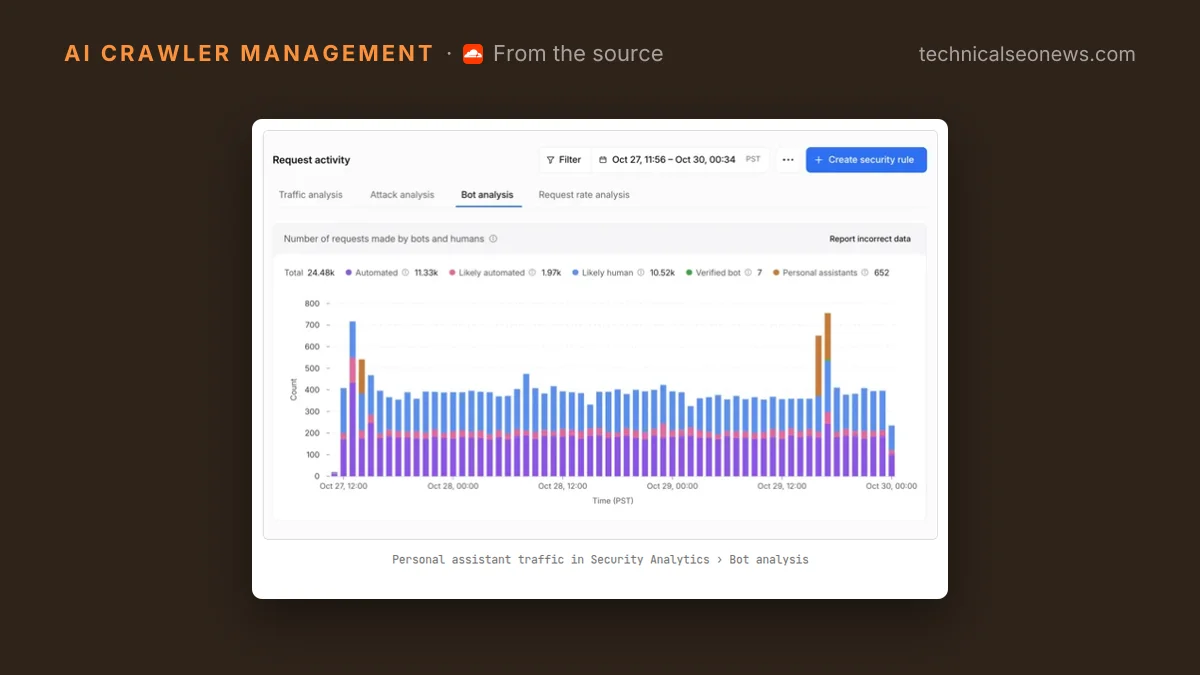
Cloudflare added a Personal Assistants category to the Bot Analysis chart in Security Analytics on 2026-11-04, separating agents that act for a person from crawlers and the rest of automated traffic. A new widget under Top statistics names each agent and counts how many requests it sends. The same release expands the Agents access policy so each supported agent can be set to Allow, Block, or Block on pages with ads.
The setting is now called AI Crawler and Agent access policies, in Security Settings, and the Search and Training policies underneath it are unchanged. That matters for scope. This release covers agents that fetch pages or take actions on a site because a person asked them to. Nothing here changes the Search or Training policies, so a training crawler such as GPTBot or a search fetcher such as OAI-SearchBot keeps whatever access it had, and a block on agents will not stop either.
The widget is the part worth opening first. Filter it to one agent and every other widget on the page narrows to that agent’s traffic: the paths it requested, the status codes it got back, and the networks it came from. That shows whether an agent is logging in, reading product pages, reaching checkout, or collecting errors on pages it cannot use, which decides whether blocking it costs a sale or saves load. Edge-level reporting is also the only place most of this shows up, since agent and chatbot fetches do not run your JavaScript analytics.
That makes the onboarding path the thing to watch. When a new zone is added to Cloudflare, the setup flow asks whether you monetize pages with ads and tailors the recommended agent policies to the answer. One question, applied to a class of traffic the zone has no history for yet. Cloudflare’s post does not say this, but a zone added today has no agent traffic in Cloudflare to judge by, and the better move is to take the recommendation as a placeholder and revisit Security Settings once the Personal Assistants widget has a week of real requests in it.
The middle option exists for publishers, and Cloudflare’s post gives the split plainly: one publisher allows an agent across the whole site so readers can find its articles, while another blocks that same agent on the pages where ads pay for the content. An agent reading an article and summarizing it back to its user produces no ad impression. Blocking it everywhere also removes the agent from the pages that have nothing to sell, which is why the per-agent override is more useful than the global toggle. You can set the overall Agents policy to Block on pages with ads and then allow a specific agent you want.
That override only applies to agents Cloudflare lists as supported. Anything it cannot identify by name falls to the overall Agents policy, so the practical question for most sites is how much of their agent traffic appears in the widget by name versus landing in the catch-all. This is the same split Vercel’s firewall made between AI crawlers and AI assistants earlier, now with per-agent control on top.
For sites running Account Abuse Protection, Cloudflare’s account security product that is still in early access, the attribution goes further: every login and sign-up event records whether an agent made the request and which one, and a compromised account can be handled with a WAF rule on its Hashed User ID rather than a block that hits everyone using that agent.
What to do
- Open Security Analytics, select Personal Assistants in Bot Analysis, and filter the new widget agent by agent. Note which ones touch login, cart, and checkout paths, and which only read content.
- Check what onboarding set for you. If the zone is recent, the agent policy came from an ads question and not from your traffic. Reset it in Security Settings under AI Crawler and Agent access policies.
- If ads fund your content, Block on pages with ads is the setting to test first, with an Allow override for any agent the widget shows reaching conversion paths.
- Leave Search and Training alone while you do this. They are separate decisions and blocking agents does not touch them.