How to use Google Search Console to validate your staging site
At a glance
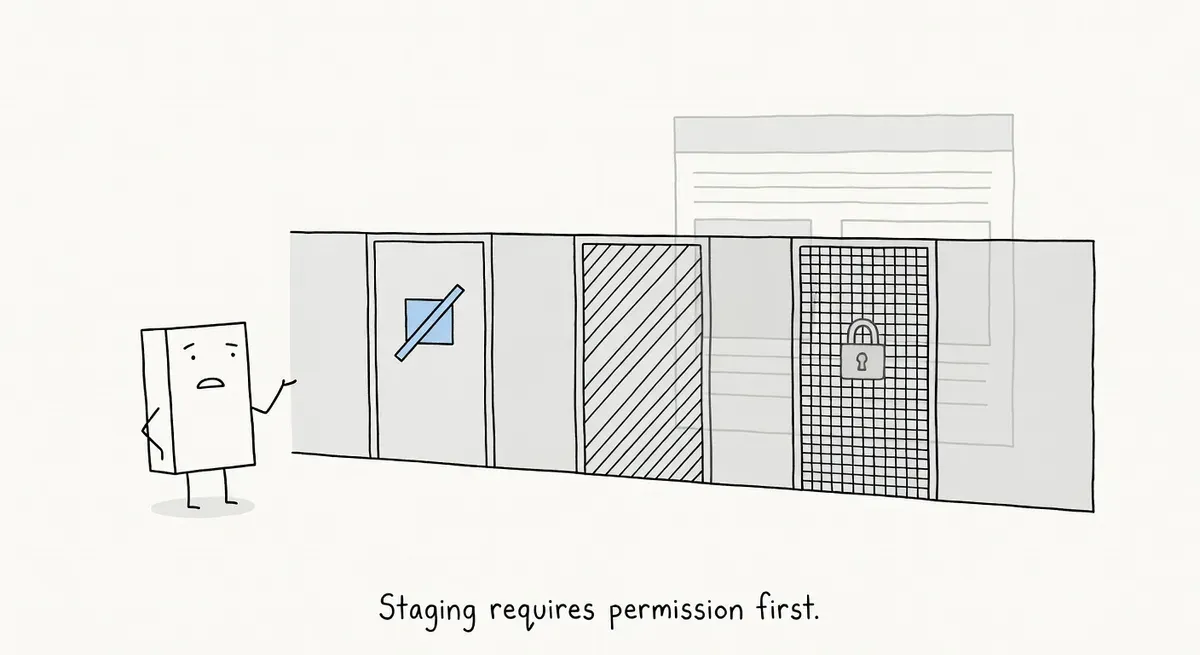
What you can test in GSC depends on how your staging is protected:
- Password/VPN: Googlebot blocked completely. No GSC testing.
- robots.txt: Crawling blocked, but URL Inspect confirms the block is active. Add noindex as a fallback (Google can still index via external links).
- IP allowlist: Full URL Inspection coverage while keeping staging private.
- noindex only: Full testing, but staging is publicly crawlable.
This guide covers each access level, the robots.txt and noindex interaction, how to get Googlebot through your firewall, and what to check before launch.
Why validate staging in GSC
Crawling your staging site with Screaming Frog or Sitebulb catches structural issues: broken links, redirect chains, orphaned pages, missing canonicals. But those tools show you what a crawler sees. Google Search Console shows you what Google specifically will do with your pages.
URL Inspection reveals things a third-party crawler cannot replicate. It shows how Google renders your JavaScript, whether your indexing directives are being respected, and what the rendered HTML actually looks like from Google’s perspective. For migrations that change templates, URL structure, or information architecture, these signals matter more than a clean crawl report.
The catch: how you protect your staging site from public access determines what GSC can actually test. Password-protect your staging and URL Inspection can’t reach it. Block it with robots.txt and Google can’t see your noindex tags. The access method you choose is the first decision, not an afterthought.
What GSC can test depends on how your staging is locked down
Not all staging protection methods are equal when it comes to GSC testing. The table below maps each access level to what URL Inspection can and cannot do.
Fully unreachable: VPN, internal DNS, Cloudflare Access (default config)
If your staging is only accessible via corporate VPN, resolves only on internal DNS, or sits behind Cloudflare Access with no bot exceptions, Googlebot cannot reach it at all. URL Inspection will fail with a connection error or timeout.
What you can test in GSC: Nothing.
When this makes sense: When staging contains sensitive data and GSC validation is not a priority. You’ll need to rely entirely on third-party crawlers (which you can run from inside the network) and manual review.
Authenticated: password protection, SSO gates
HTTP Basic Auth, Netlify password protection, Vercel authentication gates. Googlebot receives a 401 or 403 response. URL Inspection shows “Blocked due to unauthorized request” or “Blocked due to access forbidden.”
What you can test in GSC: Nothing useful. The live test confirms the page is blocked but cannot evaluate content, rendering, or indexing signals.
When this makes sense: When you need to prevent accidental indexing above all else. Password protection is the strongest guarantee that staging content won’t appear in search results. The trade-off is losing all GSC validation capability.
IP-restricted: firewall allowlist with Googlebot IPs
Deny all traffic by default, then allowlist Google’s published IP ranges. Googlebot can crawl and render pages normally. The public gets a connection refused or 403.
What you can test in GSC: Rendering, indexing status, and structured data via the live test. This is the only access method that gives you full URL Inspection live-test coverage while keeping staging private. Note that canonical selection is only visible in the indexed version report, not the live test, so you won’t see Google’s canonical choice until the page is actually indexed.
When this makes sense: When you’re running a migration with significant structural changes and need to validate Google’s specific behavior before launch. The setup cost is higher than a robots.txt rule, but the validation is qualitatively different.
Blocked by robots.txt (with or without noindex)
Disallow: / in robots.txt prevents Googlebot from crawling your staging pages. URL Inspection still runs on these URLs: it reports “Crawl allowed: No” and “Page fetch: Failed,” which confirms the block is active. But Google cannot see the page content, rendering output, or any meta directives.
What you can test in GSC: Only that the robots.txt block is working. You cannot test rendering, indexing directives, or structured data.
When this makes sense: When you need a quick, low-effort way to keep Googlebot from crawling staging. But add <meta name="robots" content="noindex"> as a fallback. robots.txt alone does not prevent indexing. If another site links to your staging URL, Google can index it based on the external link even without crawling it. The noindex tag acts as a safety net. If Google ever does crawl the URL via an external link despite robots.txt, the noindex tells Google not to index it. We expand on this interaction in the section below.
Publicly crawlable with noindex
No access restriction. Staging is open to the web, with <meta name="robots" content="noindex"> or X-Robots-Tag: noindex on every page.
What you can test in GSC: Rendering, indexing directives, and structured data. URL Inspection confirms “Indexing allowed: No,” verifying that Google sees and respects your noindex directive. You cannot test what happens when the page is indexable, because the noindex is active.
When this makes sense: For short-lived staging environments where the risk of accidental indexing is low and you need quick GSC validation without firewall changes. Remove the noindex before launch.
Risk: If you forget to remove noindex, or if your deployment process carries staging noindex tags into production, you deindex your live site. SearchVIU’s analysis of staging configurations found that about half of migration clients use staging-specific robots.txt or noindex rules. Carrying those into production is one of the most common migration failures.
How robots.txt and noindex interact on staging
This interaction is counterintuitive and worth understanding clearly, because most staging sites get it wrong.
The core problem: robots.txt blocks crawling, but it does not block indexing. If another site links to your staging URL, Google can index the URL based on the external link alone, showing it in search results even though Googlebot never crawled the page content. This is the “Indexed, though blocked by robots.txt” status in GSC.
Why noindex helps as a fallback: If you add <meta name="robots" content="noindex"> alongside your robots.txt block, the noindex provides an imperfect but useful second layer. Under normal conditions, Google obeys the robots.txt and never crawls the page, so it never sees the noindex tag.
Google’s documentation on blocking indexing states: “For the noindex rule to be effective, the page or resource must not be blocked by a robots.txt file.” This means noindex is not a reliable safety net when robots.txt is also blocking. The page can still appear in search results via external links regardless. But having noindex in place is still better than not having it. If Google ever does fetch the URL despite the robots.txt, the noindex gives it a signal to act on. It’s a second layer of defense, not a guarantee.
The practical recommendation for staging:
- robots.txt Disallow + noindex together: Use both. robots.txt keeps Googlebot from routinely crawling staging. noindex is the fallback for the external-link edge case. This combination is not contradictory; it’s defense in depth.
- noindex only (no robots.txt block): Google crawls the page, sees the noindex, and keeps it out of search results. URL Inspection works fully and confirms the directive is active. Good for GSC testing but means Googlebot is actively crawling your staging.
- IP restriction (no robots.txt block, no noindex): Google crawls if allowlisted, can’t reach if not. URL Inspection works for allowlisted setups. Best for GSC validation.
- Password protection: nothing gets through, including Googlebot. Maximum safety, zero GSC testability.
Getting Googlebot access to IP-restricted staging
If you go with IP allowlisting (the only method that enables full GSC testing while keeping staging private), your dev or infrastructure team needs to set this up. You don’t need to write firewall rules yourself, but you do need to tell them exactly what to allowlist and why.
What to send your dev team
Google publishes its crawler IP ranges as JSON files. Your team needs to allowlist the CIDR ranges (IP address blocks expressed in notation like 66.249.64.0/19) from:
- common-crawlers.json: covers Googlebot, Google-InspectionTool, and other crawlers that Google uses for indexing and validation
Google classifies the URL Inspection tool as a common crawler, so this single file covers both regular crawling and GSC-initiated inspections.
The firewall rule should deny all traffic by default and allow only these ranges. The specific implementation depends on the infrastructure (nginx, Apache, Cloudflare, AWS security groups, Vercel edge config). The request to your team is the same: “Deny all, allow these CIDR ranges.”
IP ranges change
Google updates these IP ranges periodically. If your staging environment is long-lived (weeks or months), the allowlist may go stale. Ask your team to either:
- Pull the JSON files on a schedule (weekly or bi-weekly) and update firewall rules automatically. Monitor URL Inspection results for unexpected connection errors, which can signal that the allowlist has gone stale.
- For teams that want to avoid managing IP lists entirely, a custom middleware layer can use reverse DNS verification. It confirms incoming requests are from Googlebot via reverse lookup on the domain (
googlebot.comorgoogle.com) and forward DNS to verify the IP matches. This requires server-side code and is more complex than CIDR-based firewall rules, but it doesn’t need periodic IP list updates.
How to confirm it’s working
After your team configures the allowlist:
- Open the staging property in Google Search Console
- Enter a staging URL in the URL Inspection tool
- Click “Test Live URL”
- If you see “Crawl allowed: Yes” and a rendered screenshot of the page, Googlebot is getting through
If you see a connection error or “Crawl allowed: No,” the allowlist is either incomplete, stale (Google updated its IP ranges), or the firewall rule isn’t applied to the right domain/port.
Setting up GSC for your staging domain
Add your staging domain as a URL-prefix property in Google Search Console. For example, if your staging is at https://staging.example.com, add exactly that as a new property.
A domain property (which covers all subdomains and protocols) requires DNS-level verification. If your staging runs on a separate domain, subdomain you don’t control DNS for, or a platform-managed URL (like Vercel preview deployments), a URL-prefix property is easier and sufficient.
Verification methods that work on staging:
- HTML file upload: drop Google’s verification file in your staging site’s root. Works on any hosting.
- Meta tag: add Google’s verification meta tag to your staging site’s
<head>. Works if you control the HTML template. - DNS TXT record: add a TXT record on the staging subdomain. Requires DNS access.
Only do this if staging is protected by IP allowlisting. Do not replicate production’s open robots.txt on a publicly accessible staging environment. That risks accidental indexing of staging content.
With IP allowlisting in place, keep your production robots.txt and noindex configuration on staging rather than adding staging-specific overrides. Using your real production config lets you test actual crawling and indexing behavior. If you add Disallow: / to staging’s robots.txt, you can’t verify that your production indexing directives work correctly.
What to test with URL Inspection before launch
Staging won’t have an indexed version in Google (unless something has gone wrong), so you’ll only use the live test in URL Inspection. For each page you test, focus on these signals:
Rendered HTML. Click “View Tested Page” and check the rendered HTML tab. Confirm that JavaScript-rendered content appears in the output. If your new site relies on client-side rendering for navigation, internal links, or content blocks, verify that Google’s renderer picks them up. Missing rendered content means missing indexing signals.
Indexing status. Confirm “Indexing allowed: Yes” on pages that should be indexable. If you’re testing with noindex active (publicly crawlable staging), you’ll see “Indexing allowed: No,” which is expected. The value is confirming that Google sees the directive at all.
Canonical tags in rendered HTML. The live test cannot predict which canonical Google will ultimately select (that’s only visible in the indexed version report, after Google has actually processed the page). But you can check whether your rel="canonical" tag appears correctly in the rendered HTML. If the canonical tag is missing, points to the wrong domain, or gets overwritten by JavaScript, you’ll see that in the rendered output. Google overrides canonicals for several reasons, so confirming the tag is at least present and correct in the rendered HTML is the baseline check you can do pre-launch.
Structured data. The live test validates structured data markup and reports parsing errors. If your new templates include JSON-LD for articles, products, or breadcrumbs, confirm the markup parses correctly before launch. Valid structured data means Google can read it, not that rich results will appear. Rich result eligibility depends on additional quality and policy signals beyond markup validity.
Which pages to test. You don’t need to test every page. Focus on:
- Homepage and main landing pages
- Pages with changed URL structure (new slugs, new directory paths)
- Consolidated pages where multiple old URLs redirect to one new page
- Pages using new templates or components
- Any page with JavaScript-rendered content
Troubleshooting
URL Inspection shows “Crawl allowed: No” even after removing robots.txt rules. Google caches robots.txt and won’t see your update until it re-fetches the file. Google doesn’t guarantee a specific refresh interval. You can check the current cached version and request a re-fetch via the robots.txt report in GSC.
URL Inspection shows “Blocked due to unauthorized request (401).” Your staging has HTTP authentication active. Googlebot cannot provide credentials. Either remove the password protection and switch to IP-based access control, or accept that you can’t use GSC to validate this staging environment.
URL Inspection shows a rendered page but canonicals are wrong. Check whether your staging site’s canonical tags reference production URLs. CMS platforms and frameworks often generate canonicals from a site URL configuration variable. Verify that this variable is set to the staging domain, not production, for the duration of testing. Update it back before launch.
URL Inspection works for some pages but times out on others. Large pages with heavy JavaScript may hit Google’s rendering timeout. A rendering timeout in URL Inspection is worth investigating, though URL Inspection and the main Googlebot crawler use different rendering pipelines and don’t behave identically. Investigate and simplify JavaScript complexity or implement server-side rendering for those pages.
Cloudflare is blocking URL Inspection despite Googlebot IP allowlisting. Cloudflare’s bot management can independently block requests it classifies as automated, even from allowlisted IPs. Create a WAF exception rule specifically for verified Googlebot. Check the Firewall Events log in the Cloudflare dashboard to confirm requests from Google’s IPs are passing through.
Staging crawl vs GSC validation
A clean Screaming Frog crawl tells you the structure is sound. GSC’s URL Inspection tells you whether Google agrees. Both matter, and they answer different questions.
Set up your staging access to allow Googlebot in, run URL Inspection on the pages that are changing the most, and compare the results against your production baseline. Fix discrepancies before launch, not after.
If your migration changes information architecture, not just URLs, a staging crawl catches the structural issues while GSC validation catches the Google-specific ones. Use both.